Two photos become a short story
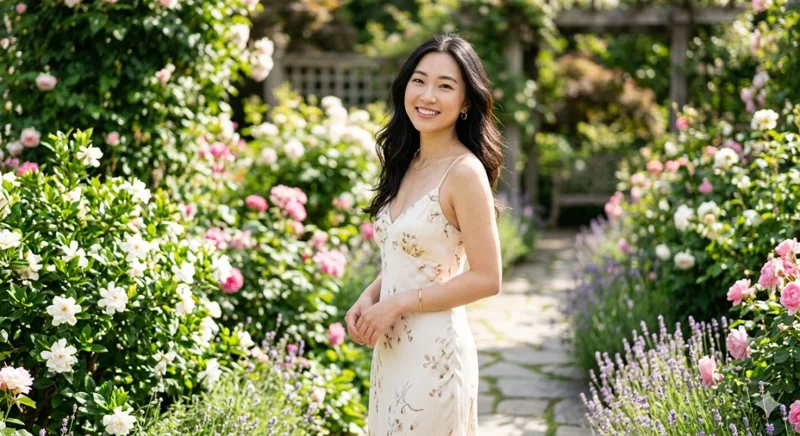
These two authorized portraits guide the characters’ appearance in the snowy story below. AI generates the scenes and actions: one character stays human, while the other has a zombie look before an imagined healthy memory. This is fictional entertainment, not a record of the people’s lives. Watch the example, then choose this story or compare the other video templates.
AI-generated story sample
An embrace across two worlds
Two people meet in a ruined kitchen, leap into an embrace and share a peaceful snowy memory.

An AI-generated fictional story made for this site with permission to use the input photos. Compare the input portraits with the finished scene to help choose your own photos.
Choose photos for the story.
Use photos you own or have the right to process, and get each adult’s permission to use their appearance in the story you select. Photo 1 shows one adult. Photo 2 shows another consenting adult, or one dog or cat for a pet story. It guides the character with a fictional zombie look in the opening scene.
Good starting photos
Clear faces, even lighting and visible shoulders. For pets, show the face, ears, coat markings and as much of the body as possible.
Photos to avoid
Group photos, sunglasses, tiny faces, heavy filters and cropped heads. Blurry or very dark photos give the AI less detail to work from.
Choose JPG, PNG or WebP files up to 5 MB each, at least 300 pixels wide and tall. Your photo keeps its full framing when prepared for upload. Selecting photos does not send them for processing.
Choose a story with the ending you want.
The zombie video templates include cabin reunions, golden-field memories, snowy embraces, pet stories and a caring dinner scene. Each has a prepared story and music direction, so you do not need to write a prompt.
Most stories end warmly. A snowy animated memory returns to a frightening cabin and has a sad ending. The dinner story follows sharing noodles rather than a hug. Longer stories are adapted to fit a 12- or 15-second clip.
Create, check and download.
- Choose a story and its two photos in the video generator.
- Check the clip length, resolution and portrait, landscape or square shape shown for your chosen story. These settings are already prepared.
- Select Generate video, review the credit cost, then confirm your photo permissions and complete the security check. Choose Generate video in the confirmation to start.
- Keep this browser available while processing. Creation can take several minutes; reloading the tab can recover the status.
- Watch Your video, check the characters, pet appearance and movement, then select Download video.
Private access links expire after one hour. Download results you want to keep. Videos are not automatically posted to the community.
Check the result before sharing.
Watch the full clip and check the characters, movement and ending before sharing. Clear faces, even lighting and visible pet markings give your story a useful starting point; see the photo tips when choosing your inputs.
Listen to the soundtrack and choose a caption that fits the mood. Label your clip as AI-generated when sharing so viewers can enjoy it as a fictional story. For trimming, captions and music, follow our Reels editing guide after downloading.
Generation requires an available service and enough credits or an existing allowance. Compare one-time credit packs and check purchase availability before you start. You can watch the samples without an account or credits. See current availability.